Showing posts with label CMS. Show all posts

Thursday, August 21, 2014

How to add SEO title for Categories in Wordpress

How to add SEO title for Categories in Wordpress

Open your functions.php file.Add the following lines.

File path: wp-content/themes/your-theme/functions.php

Store SEO titles in array with Category ID.

Function

$pagetitels = array(
            13 => 'Your Category Custom title', //Category ID and custom title
            18 => 'Your Category Custom title',
            17=> 'Your Category Custom title'
        );

Create function to overwrite default titles.

Function

function change_cptitle() {
    global $pagetitels;
    $catid = get_query_var('cat'); //Get Category ID
    if (array_key_exists($catid, $pagetitels)) {
        $title = $pagetitels[$catid]; // use a custom title
    } else {
        $title = get_the_category_by_ID($catid); // use the category name as title
    }
    return $title;
    }

Full Code

$pagetitels = array(
            13 => 'Chennai Real Estate Guide 2014| Chennai Property magazine ',
            18 => 'Luxury Living | Luxury Real Estate Magazine',
            17=> 'Architectural magazine | Architecture design ideas '
        );
        function change_cptitle() {
    global $pagetitels;
    $catid = get_query_var('cat'); //Get Category ID
    if (array_key_exists($catid, $pagetitels)) {
        $title = $pagetitels[$catid]; // use a custom title
    } else {
        $title = get_the_category_by_ID($catid); // use the category name as title
    }
    return $title;
    }
add_filter("single_cat_title", "change_cptitle");

Please share your comments and feedback.Thanks.Please subscribe my updates via email.

Thursday, July 31, 2014

Best Joomla shopping cart tools

Joomla Shopping Cart Extensions

1.Virtuemart

Virtuemart  is most popular shopping cart for joomla .Plugins are available for Paypal, Authorize.net, PayZen, Systempay, Moneybookers, Klarna, Heidelpay. Virtuemart is easily integrated with other Joomla extensions.
Learn & Downlaod

2.HikaShop Shopping Cart

HikaShop is an E-Commerce component for Joomla. Payment plugins are available for PayPal, Google, Authorize.net, MoneyBookers and others. Shipping plugins are also available in Hikashop Shopping cart.


Learn & Downlaod

3.J2Store

J2Store is an E-Commerce plugin for Joomla.It is used to sreate beautiful estore in joomla and may payment,shipping plugins available for J2Store


Learn & Downlaod

4.Joomshopping

Joomshopping is an E-Commerce plugin for Joomla.Main advantages of this plugin is that it is search engine optimized.

Learn & Downlaod

5.redSHOP

RedShop is an E-Commerce component for Joomla. Payment plugins are available for PayPal, Google, Authorize.net, MoneyBookers and others.

Learn & Downlaod

If you feel free post your comments.

Monday, June 23, 2014

Wordpress,Joomla and Drupal Comparsion

Today We will discuss about Most popular CMS tools.If you know about any CMS tools please comment here.

Most popular CMS tools are
  1. Wordpress
  2. Joomla
  3. Drupal


Wordpress:

Wordpress is most popular CMS tool,Is used to create powerful websites and blogs.There are many plugins,themes available in web.

It is open source  tool and we can easily develop websites and blogs.

To develop website in Wordpress Click Here.

Joomla:

Joomla is also Very powerful CMS tool .It is also used to develop web applications and blogs.The latest version of joomla is 3.2.It is have many features like Content Versioning,Rapid framework,Joomla Appstore etc.

Compare to Wordpress, Joomla is little difficult to develop web applications. And Have separate admin section.

To develop website using joomla Click Here

Drupal:

 Drupal is open source CMS tool is used to create web applications.It is diffcult compare to wordpress and Joomla.

Drupal don't have separate admins section.Admin was built in front end.

Wordpress VS Joomla Vs Drupal:

Features Comparison:


Please feel free to comment and don't forget to subscribe my updates via email.

Monday, June 2, 2014

How to Install Drupal

Drupal is powerful CMS tool.It is used to create web applications.


Find the below steps to install new drupal.

Step 1: Download ,extract and upload drupal in your server(in WAMP upload in www folder or XAMPP upload in htdocs folder).
Step 2: Create New database using PHPmyadmin.

Step 3: Go to your browser.Type http://localhost/yourfoldername/ and press enter button.
Step 4: This is the first step of drupal installation.Next Click Save & Continue button.
Step 5: Choose your language.
Step 6: Next Enter your database details.Click Save & Continue button.
Step 7: Final Step enter your website title,admin password and your email.Click Save & Continue button.
Step 8: Installation is completed.Click Visit your new site to see your website.

Please share your comments and feedback.Thanks.Please subscribe my updates via email.


How To Install WordPress Localhost

Wordpress is very powerful blogging tool.It is used to create websites,blog and web applications.

Working in wordpress is very easy and we can easily develop website.

Find the below steps to install new wordpress.

Step 1: Download ,extract and upload wordpress in your server(in WAMP upload in www folder or XAMPP upload in htdocs folder).
Step 2: Create New database using PHPmyadmin.
Step 3: Go to your browser.Type http://localhost/yourfoldername/ and press enter button.
Step 4: You will see the below image in your browser.This is the first step of wordpress installation.Next Click Create configuration button.
Step 5: Next You will see the below image in your browser.It is a information about database.Read and click Let's go button.
Step 6: Next Enter your database details.Click Submit button.
Step 7: Next Click Run install.It will start your WP installation.
Step 8: Final Step enter your website title,admin password and your email.Press install Wordpress button.
Step 9: After that you will see the below screen in your browser.Save admin password.

Step 10: Login in administrator using your username and password.
Step 11: Your dashboard will look like the below image.
Step 12: Start to add Post and Pages.

Please share your comments and feedback.Thanks.Please subscribe my updates via email.


Wednesday, May 28, 2014

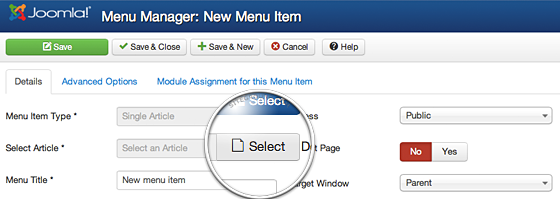
How to link to an Article in a Joomla 3 Menu

Joomla is popular CMS tools.It is used to develop various type of websites.

Adding article is very in Joomla and develop web applications in joomla is very very easy.There is many types of menu types available in joomla.In this i have used Single article menu type to link article.


Find the below steps to add new article.

Step 1: Login to your Joomla admin section using your admin username and password.


Step 2: Add menu name using Menu manager.Enter Menu and alias.


Step 3: Select Menu type.


Step 4:Select Single article from the menu type.


Step 5: Select your article.Click select article button.


Step 6: Finally click Save button.

Tuesday, May 27, 2014

How to write a new Article in Joomla 3

Joomla is CMS(Content Management System),it allows you to magae content very easily.It is very easy to add article in joomla.


Find the below steps to add new article.

Step 1: Login to your Joomla admin section using your admin username and password.
Step 2: There are two options available to add new article.
    1.In the top menu, under Content, hover over Article Manager and then click Add New Article.
2.In the Quick Links click Add New Article.
Step 3:Enter your article title and alias.
Step 4: Select your article category.
Step 5: Enter your content in editor.
Step 6: Finally click Save button to publish your article.
Note:There are many options and settings you can change.This is very basic steps how to add new article.

Please share your comments and feedback.Thanks.Please subscribe my updates via email.


Friday, May 2, 2014

5 useful Captcha plugins for Wordpress

Wordpress is the most powerful blogging tool and it is used to websites,blog and etc.there are many plugins available to create wordpress websites as powerful.in this post i am going to explain recaptacha plugins for wordpress.


1.Contact Form With Captcha Contact form with captcha is good plugin for WordPress that enables a contact form with the google reCAPTCHA.Install and activate the plugin, enter your reCAPTCHA keys and email in the Admin (and other optional fields), and place the short code [cfwc] on any page or post.Click Here
2.WP-reCAPTCHA WP-reCAPTCHA that enables a contact form with the google reCAPTCHA.Install and activate the plugin, enter your reCAPTCHA keys and other optional fields. For more details.Click Here
3.NO CAPTCHA Anti-SpamThis plugin is used to stop spam mails.it is not provide captacha ,it checks website if anything found like sam,it will detect and protect your website.Click Here
4.KeyCAPTCHA - Social WordPress CAPTCHA This plugin comes like a picture.It is very easy to use.Click Here
5.NuCaptcha WordPress Plugin This plugins is free and easy to use.It is used to protect website against spam.It contains moving captacha letters and it is very useful for wordpress developers.Click Here
Please share your comments and feedback,Thanks.!!

Monday, April 21, 2014

Fatal error: Call to undefined function apc_fetch() in Joomla

Step 1:Open your configuration.php file.
Step 2:

Find Line

public $cache_handler = 'apc';

Replace with

public $cache_handler = 'file';

Step 3:Save and refresh the page.

 It works fine

Please share your comments.

Saturday, April 19, 2014

How to install Joomla3.0

In this article i am going to explain how to install Joomla3.0 in server.

Joomla is a CMS tools,is used to create web application very easily.


Joomla3.0 installation takes only 3 steps.

Download Joomla3.0 from this link.

Extract Zip folder and upload unzip files into your server.

Open your browser type this: http:localhost/joomla3 (For localhost)

Step 1: Configuration 
In this step you need to select your language,Site Name,Admin Email,Site description and admin password.

Step 2: Database Configuration

In this step you need to enter your database details.

If you are install in localhost try the following details:

Host name: Localhost
Username:root
Password: Leave empty
Database Name: your DB name

Click Next

Step 3: Finalisation

If you want sample data use the option install sample data.This will shows how the Joomla3.0 works and module details.
I strongly recommend for beginners to install sample data and try Joomla.


Click Next

Now Joomla3.0 was installed.Click Remove Installation button ,Don't forget.

Now start your customization in Joomla3.0.